• Home
  • Contact Support
betterdocs-category-icon

Zoom

6
  • Downloading and installing Zoom application
  • Sign up and activate your Zoom account
  • Joining a Zoom meeting
  • Changing Virtual Background image
  • Participant controls in a meeting
  • listen to Language Interpretation
betterdocs-category-icon

NazChat

8
  • 1. Getting Started With Synology Chat: What is NazChat?
  • Install Synology Chat – Windows
  • Install Synology Chat – Mac
  • Synology Chat – First Login
  • Synology Chat Mobile App
  • Android Notification Issue – Synology Chat
  • Synology Chat – Channels & Conversations
  • Synology Chat Features
betterdocs-category-icon

Email

5
  • Accessing Globalnaz Email
  • Changing Password in Zimbra Webmail
  • Email Setup on Apple Mail
  • Setting up Email account in MS Outlook for Mac
  • Adding Email Account in MS Outlook 2016
View Categories
  • Home
  • Docs
  • NazChat
  • Synology Chat – First Login

Synology Chat – First Login

< 1 min read

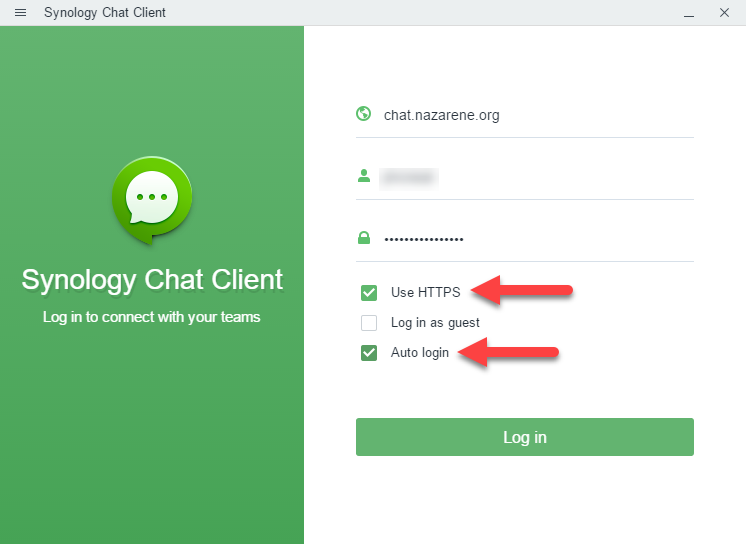
Enter the following to Login:

  1. Servername = chat.nazarene.org
  2. Username = Domain Username (e.g. jsmith)
  3. Password = Domain/Email Password (or same as Nlynk)
  4. Check Use HTTPS
  5. Check Auto login
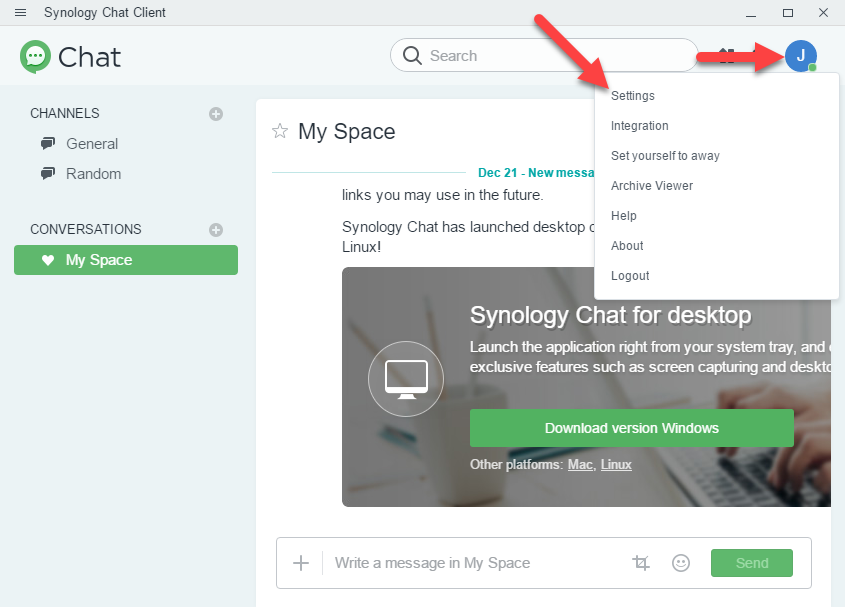
  1. Click on your Initial
  2. Click on Settings
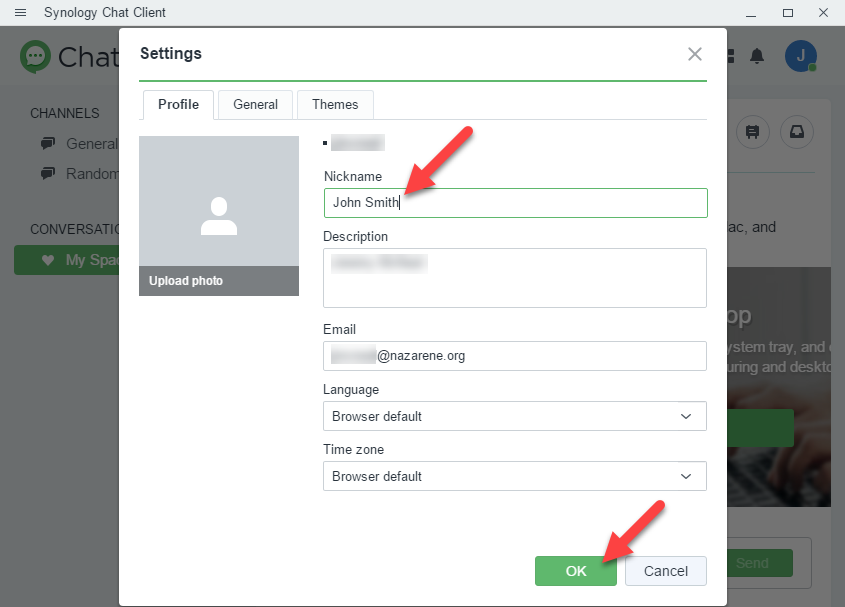
  1. Enter your Full Name in the Nickname field
Article from: https://itkb.nazarene.org/itkb/article.php?id=266

Was this helpful?

Share This Article :

  • Facebook
  • X
  • LinkedIn
  • Pinterest
Updated on February 7, 2023
Install Synology Chat – MacSynology Chat Mobile App

CHURCH OF THE NAZARENE ASIA-PACIFIC
© COPYRIGHT 2023 | ALL RIGHTS RESERVED